

I was getting increasingly frustrated with Firefox’s performance on my laptop. Brave felt faster, and I wanted to understand why. Naturally, I started looking at browser settings and performance tweaks.
It turned out that some of my browser extensions were a much bigger part of the problem than I expected.
Disabling them took my Firefox benchmark score from 12.6 to 17.5. More importantly, the improvement was noticeable during everyday browsing. This wasn’t just a nicer number on a benchmark website.
Before you decide that your browser is slow and start looking for alternatives, you might want to investigate what’s running inside it.
Why Browser Extensions Can Slow You Down
We tend to think of browser extensions as little buttons sitting next to the address bar. But many extensions do considerably more than that.
An extension can run code inside websites you visit, respond to browser events, communicate with external services, or modify the contents of a page.
According to Mozilla’s documentation on browser extension architecture, extensions can contain different components, including content scripts and background scripts.
Content scripts are particularly interesting from a performance perspective because they allow extensions to interact directly with web pages.
Think about a password manager, for example. It needs to identify login forms, determine whether you have saved credentials for the website, and potentially display autofill suggestions.
That’s useful functionality, but it requires additional work.
Depending on how they’re implemented, extensions can:
- Consume additional RAM.
- Increase CPU usage.
- Execute JavaScript inside websites.
- Monitor changes to page contents.
- Perform background operations.
- Interfere with how quickly websites respond to your actions.
None of this means extensions are inherently bad. Some can even improve performance by preventing unnecessary content from loading.
The interesting question is how much an extension costs you compared to the value you get from it.
My Firefox Performance Experiment
I decided to test Firefox using Speedometer 3.1, a browser benchmark that measures the responsiveness of web applications by simulating common user interactions.
For context, here’s the hardware and software I was using:
- Laptop: Lenovo Yoga Slim 7 Pro
- Processor: Intel Core i7-11370H
- RAM: 16 GB
- Operating system: Fedora Linux 45
- Desktop environment: KDE Plasma
- Browser: Firefox 160
My Brave installation had previously scored 16.8, while Firefox was sitting at 12.6.
Initially, that seemed like a fairly convincing argument in Brave’s favor. Then I created a fresh Firefox profile.
Firefox scored 17.4.
That changed the direction of my investigation. Instead of trying to make Firefox faster through configuration changes, I needed to figure out what was making my existing installation slower.
Here are the relevant results:
| Configuration | Speedometer 3.1 score |
|---|---|
| Original Firefox profile | 12.6 |
| Fresh Firefox profile | 17.4 |
| Existing profile with extensions disabled | 17.5 |
Higher scores are better.
The existing profile with its extensions enabled scored approximately 28% lower than the configuration with them disabled.
Viewed from the other direction, disabling the extensions improved the benchmark score by approximately 39%.
Same laptop. Same browser. Very different results.
These are observations from my own testing, not averages from a controlled laboratory experiment. But the difference was large enough to justify investigating further.
Which Extensions Were Responsible?
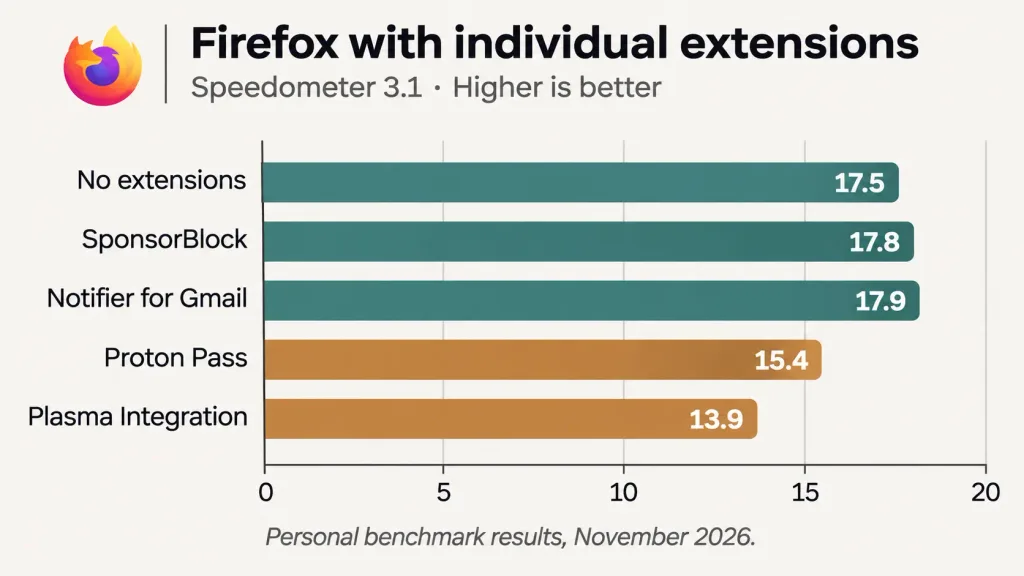
Rather than permanently removing everything, I tested groups of extensions to narrow down the problem. Once I identified the problematic group, I tested its members individually.
The extension-disabled baseline for this series was 17.5.
| Extension tested individually | Score | Difference from baseline |
|---|---|---|
| No extensions | 17.5 | — |
| SponsorBlock | 17.8 | +1.7% |
| Notifier for Gmail | 17.9 | +2.3% |
| Proton Pass | 15.4 | -12.0% |
| Plasma Integration | 13.9 | -20.6% |
Two extensions stood out.
Plasma Integration
As a KDE Plasma user, I appreciate having my browser integrate with my desktop environment. Plasma Integration provides useful functionality that helps connect the two.
Unfortunately, it also produced the largest performance drop among the extensions I tested individually.
With Plasma Integration enabled, Firefox scored 13.9 compared to the baseline of 17.5.
That’s a considerable difference for an extension whose primary purpose is desktop integration.
I’m not suggesting that everyone using Plasma Integration will experience the same slowdown. Different hardware, browser versions, extension versions and desktop configurations can produce different results.
But on my particular setup, it was the biggest culprit I identified.
Proton Pass
This one was more difficult to investigate because Proton Pass is my default password manager.
In the initial individual test, it reduced my score from 17.5 to 15.4.
I conducted another series of tests specifically targeting Proton Pass:
| Proton Pass configuration | Score |
|---|---|
| Extension disabled | 16.5 |
| Extension enabled | 14.6 |
| Optional autofill and autosuggest disabled | 14.7 |
| Login autofill also disabled | 14.6 |
Disabling those optional features didn’t meaningfully improve the benchmark results in my testing.
That doesn’t tell me exactly which part of Proton Pass was responsible. Identifying that would require profiling the extension itself.
It does, however, illustrate an uncomfortable trade-off. A tool that provides valuable functionality can also have a measurable performance cost.
And no, I wouldn’t recommend abandoning your password manager just to improve a benchmark score.
SponsorBlock and Notifier for Gmail
Neither extension produced a meaningful slowdown in my individual tests.
Their scores were actually slightly higher than the baseline, but I wouldn’t interpret that as evidence that they make Firefox faster. Small differences between benchmark runs can occur naturally.
What matters is that neither showed the substantial performance penalty I observed with Plasma Integration and Proton Pass.
This is also why counting your extensions isn’t necessarily useful. One demanding extension could have a greater impact than several lightweight ones combined.
Benchmark Scores vs. Everyday Performance
I’m generally skeptical of treating benchmark results as the final word on software performance.
A browser that scores 20% higher in Speedometer isn’t necessarily going to load every website 20% faster. Your internet connection, website infrastructure, caching, graphics hardware and numerous other factors contribute to the experience.
Speedometer primarily evaluates web application responsiveness. It isn’t a comprehensive test of memory consumption, battery life, download speeds or video playback.
In my case, however, disabling the problematic extensions noticeably improved everyday browsing.
That was the result I actually cared about.
A benchmark is useful because it provides a consistent workload for comparing configurations. But if you’re optimizing your browser, the ultimate objective should be making it more pleasant to use, not winning an imaginary competition on BrowserBench.
How to Find Extensions That Slow Down Your Browser

You don’t need to switch browsers, reinstall your operating system or start modifying experimental settings to investigate this.
The following approach works with modern desktop versions of Firefox, Chrome, Brave and other Chromium-based browsers.
Step 1: Establish a Baseline
Open Speedometer 3.1 and run the benchmark with your current browser configuration.
For more reliable comparisons:
- Close unnecessary tabs and applications.
- Keep your laptop plugged in.
- Use the same operating system power profile throughout testing.
- Avoid downloading files or running demanding background tasks.
- Run the benchmark at least three times per configuration and record the median score.
Don’t compare your results against random screenshots posted online. Different processors and operating systems can produce substantially different scores.
You’re interested in how your own browser performs under different conditions.
Step 2: Temporarily Disable Your Extensions
Open your browser’s extension management page.
| Browser | Extension management page |
|---|---|
| Firefox | about:addons |
| Google Chrome | chrome://extensions |
| Brave | brave://extensions |
| Microsoft Edge | edge://extensions |
Disable your extensions without uninstalling them. Restart the browser and repeat the benchmark.
For Firefox users, Mozilla also provides a Troubleshoot Mode, which is useful for diagnosing browser problems.
However, Troubleshoot Mode changes more than just your extensions, including temporarily disabling hardware acceleration. If you’re specifically investigating extensions, manually disabling them is a better starting point.
Pro Tip: Don’t uninstall your extensions during testing. Disabling them makes it easier to restore your original configuration without losing extension-specific settings.
Step 3: Test Extensions in Groups
If you have 20 extensions installed, testing them individually from the beginning could take quite a while.
Instead, divide them into two groups.
Enable the first group, restart your browser and run the benchmark. Then disable that group and repeat the process with the second group.
If one group causes a significant performance drop, divide it into smaller groups until you’ve narrowed down the potential culprits.
Finally, test the suspected extensions individually.
Keep in mind that extensions can also interact with one another. If neither group reproduces the original slowdown, try testing combinations or enabling extensions progressively.
Step 4: Check CPU and Memory Consumption
Benchmarking isn’t the only way to investigate browser performance.
Browsers also provide built-in tools that help you examine resource consumption.
Firefox users can open:
about:processes— Shows resource usage across browser processes.about:performance— Helps investigate the resource usage of individual tabs and extensions.
Mozilla explains these tools in its Firefox Task Manager documentation.
Chrome users can access the browser’s Task Manager through the browser menu. Similar functionality is available in many Chromium-based browsers.
Google’s own browser performance guide recommends inspecting resource usage and disabling unwanted extensions.
These tools are particularly useful for investigating extensions that consume resources even when you’re not actively using them.
However, not all extension-related work will necessarily appear under a neatly labeled extension process. Code running inside websites can contribute to resource usage elsewhere.
Step 5: Decide What Is Worth Keeping
Once you’ve identified the problematic extensions, don’t automatically uninstall all of them.
Ask yourself:
- How often do I actually use this extension?
- Does it provide functionality my browser already has?
- Can I restrict its access to specific websites?
- Is there a lighter alternative?
- Is its functionality worth the performance cost?
For example, a password manager that you use dozens of times a day deserves a different evaluation from an extension that changes the appearance of your new tab page.
Once you’re finished testing, re-enable the extensions you intend to keep and restart your browser. Confirm that your essential functionality, particularly password management and security features, is working normally again.
Should You Avoid Browser Extensions Altogether?
No.
Extensions are one of the reasons modern browsers are so useful. Password managers, content blockers, accessibility tools and productivity extensions can significantly improve your browsing experience.
Some extensions can reduce the amount of work your browser needs to perform. A content blocker, for instance, may prevent resource-intensive advertisements and tracking scripts from loading on certain websites.
That’s also why Speedometer alone isn’t enough to evaluate every extension. An ad blocker may have a small performance cost during a synthetic benchmark while providing substantial benefits on an advertisement-heavy website.
My recommendation is to be selective rather than obsessive.
Install extensions that solve actual problems. Remove the ones you forgot you had. Investigate the ones that appear to cause significant slowdowns.
You don’t need a completely empty extension toolbar.
Frequently Asked Questions
How many browser extensions are too many?
There’s no universal number. Performance depends on what each extension does, how it’s implemented and when its code runs. Ten lightweight extensions may have less impact than one resource-intensive extension.
Can browser extensions slow down internet speed?
Extensions can affect how quickly websites load or respond, but that doesn’t necessarily mean they’re reducing the speed of your internet connection. Extensions that redirect or filter network traffic, such as VPN and proxy extensions, can also affect network performance.
Does disabling an extension delete its settings?
Normally, no. Disabling an extension generally preserves its stored settings, whereas uninstalling it may remove its local data. Important extension-specific data should still be backed up where appropriate.
Is private browsing a good way to test extension performance?
Not necessarily. Extensions may be permitted to run in private windows, and private browsing can introduce other differences in browser behavior. Manually disabling extensions provides a more useful comparison.
Before You Switch Browsers
I started this experiment because Firefox felt slower than Brave. I expected to spend most of my time investigating Firefox’s internal settings.
Instead, some of the biggest improvements came from investigating the software I had installed on top of it.
Browser engines matter. Hardware acceleration matters. Browser configuration matters. But so do the extensions we install and then forget about.
If your browser is frustratingly slow, give it a few benchmark runs without extensions before downloading another one.
Otherwise, you might spend an afternoon migrating your bookmarks, passwords and settings, only to reinstall the very same extensions that contributed to the problem in the first place.