
Uninstalling YouTube from an Android phone is easy. Uninstalling the thing that makes YouTube work is where people get into trouble.
If you want to remove Google from Android without rooting your phone, you can go surprisingly far. Most of Google’s apps come off with a couple of taps or one command, and the phone barely notices. Underneath them, though, sits a layer that a lot of your other apps quietly lean on. Pull that out and a cleaner phone turns into a broken one.
This post maps where that line is. I’ll go level by level, from the safe stuff to the parts I’d leave alone, and say what stops working at each step. If you want the hands-on part, my debloat guide walks through the tools. This one is about knowing when to stop.
Three Layers of Google on Your Phone
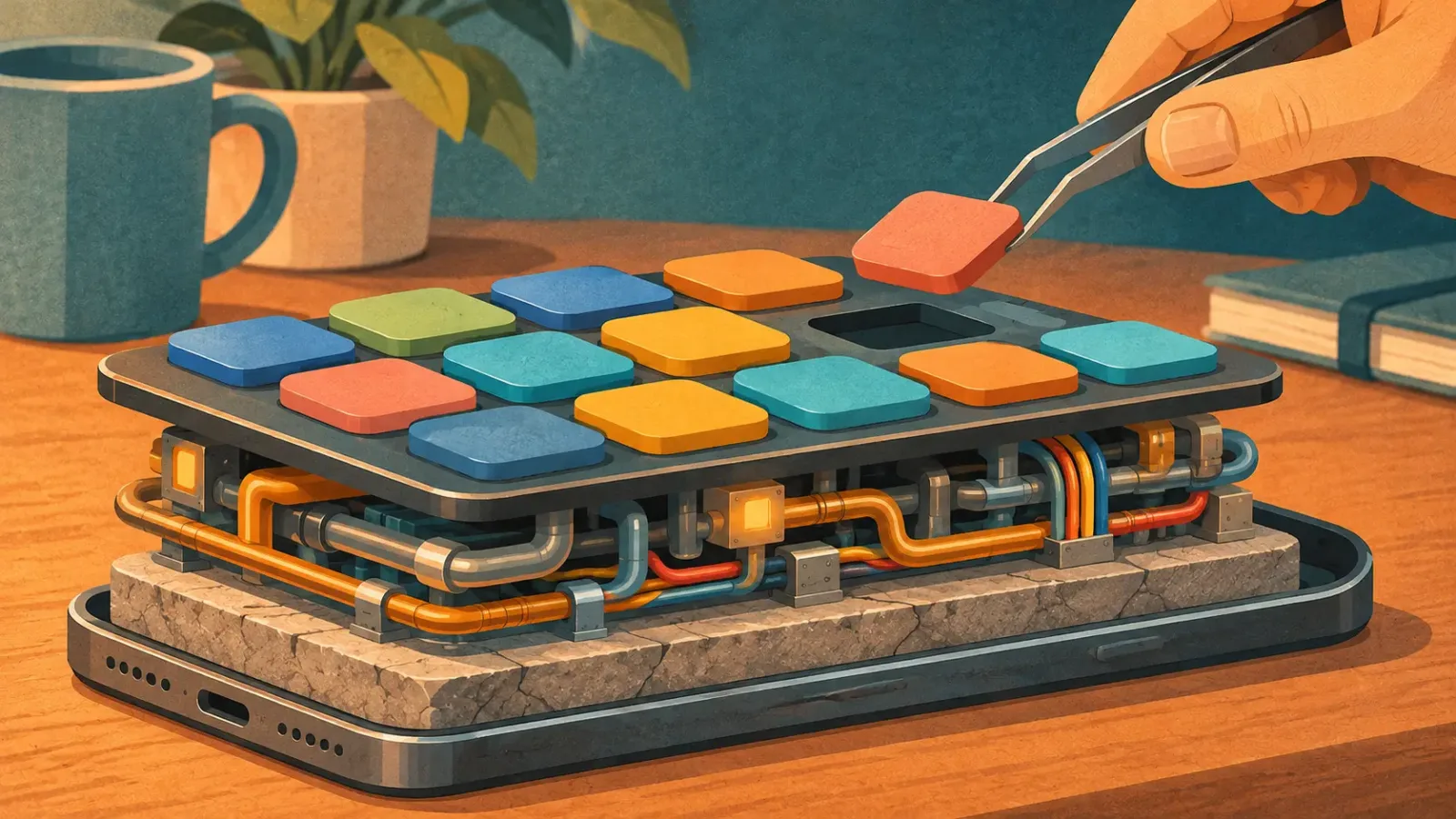
Google shows up on a typical Android phone in three layers, and they behave very differently when you start cutting.
- The apps you can see. YouTube, Gmail, Chrome, Photos, Drive, Maps, Gemini. These are ordinary apps that happen to come preinstalled.
- The plumbing. The Play Store, Android System WebView, Carrier Services, and Google Play system updates. You rarely open these, but other things depend on them.
- Google Play Services. A background app, often called GMS (Google Mobile Services), that other apps call into for Google features. Google’s own help page lists what it handles: notification delivery, location, Find Hub for lost phones, Fast Pair for Bluetooth accessories, Nearby Share, encrypted backups, Play Protect malware scanning, and sending your location to emergency services.
The rule is simple. The deeper the layer, the more things break at once.
Level 1: Disable What Settings Lets You Disable
Start in Settings > Apps. Open a Google app, tap Uninstall updates if the option is there, then tap Disable. The app disappears from your app drawer, stops running, and stops updating.
What breaks: the app itself, and nothing else. It’s fully reversible, since you just tap Enable to bring it back.
The catch is that your phone decides what you’re allowed to disable. On many phones the button is greyed out for some Google apps, and that’s what pushes people to the next level.
Level 2: Remove Google Apps With ADB, No Root
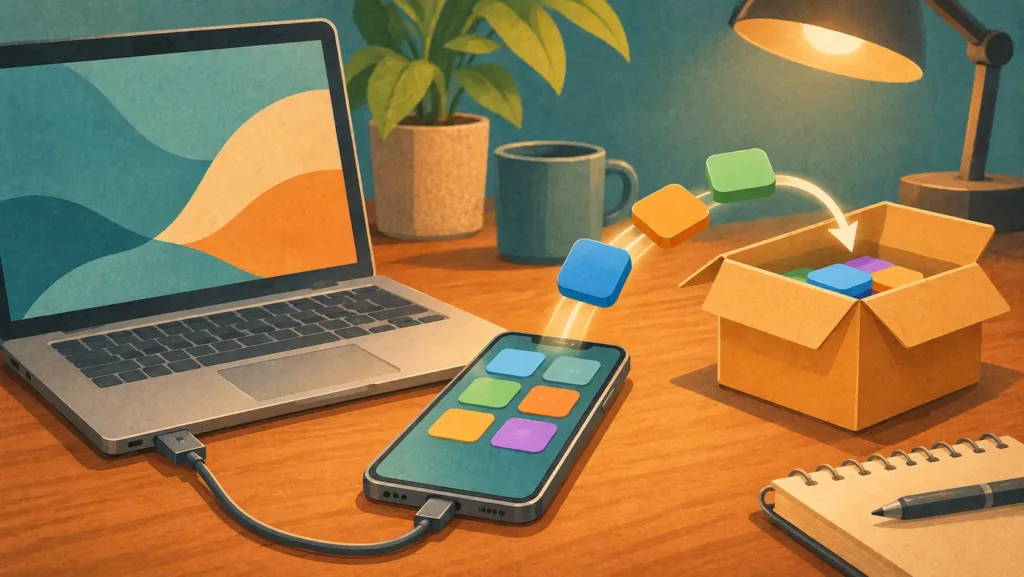
ADB (Android Debug Bridge) is Google’s own developer tool for talking to a phone from a computer. With it, you can remove apps that Settings won’t let you touch:
adb shell pm uninstall -k --user 0 com.google.android.youtubeDespite the word “uninstall,” this doesn’t delete anything from the system. It removes the app for your user account, while the original copy stays on the phone’s read-only system partition. That’s why it works without root, and also why a factory reset brings everything back. To restore one app without resetting:
adb shell cmd package install-existing com.google.android.youtubeApps like Canta, paired with Shizuku, run the same commands from the phone itself. That’s the setup my debloat guide uses.
Safe to remove
These are self-contained apps. Removing them breaks nothing beyond the app:
- YouTube, YouTube Music, and Google TV
- Google Drive and Google Photos (make sure your photos are backed up somewhere first)
- Gmail, if you read mail in another app
- Google Maps, if you’ve switched to something else
- Chrome, on Android 10 and later
Chrome surprises people. On Android 7 through 9, Chrome could act as the engine other apps used to show web pages. From Android 10 that job belongs to a separate app, so Chrome is just a browser again.
Remove only after you set up a replacement
Some Google apps do a job the phone can’t go without. Set a replacement as the default first, then remove:
- Gboard. If it’s your only keyboard, removing it leaves you with nothing to type with. Install another keyboard and switch to it before you touch Gboard.
- Google Messages and Carrier Services. If Messages is your texting app, pick a new default first. Expect to lose RCS chat, the modern texting standard with typing indicators and high-quality media. Google says Carrier Services exists to support RCS in Messages, so removing it can break RCS even if you keep Messages.
- Google Phone, on phones where it’s the dialer. Set another default calling app first.
- The Google app. On many phones the home-screen search bar and assistant shortcuts lean on it. Remove it and those shortcuts stop working.
Leave this one alone
Android System WebView is the engine apps use to show web pages inside themselves: login screens, help pages, in-app articles. Remove it and those parts of other apps fail. It’s Google software, but it isn’t optional.
Level 3: The Google Play Store
You can remove the Play Store with the same ADB command. Most apps you already installed keep working. What you lose is less obvious, and it adds up:
- Updates. Nothing you installed from Play gets updated anymore, security fixes included.
- Google Play system updates. Since Android 10, Google has split pieces of Android into Mainline modules that can be patched without a full system update. On phones that ship with Google’s apps, those patches arrive as Google Play system updates, which run on the Play Store’s infrastructure. Remove the store and you should expect them to stop.
- Apps that check where they came from. Google’s Play Integrity check, which many banking and payment apps use, can report whether an app was installed by Google Play. Some apps refuse to run when that check fails.
Alternative stores like F-Droid cover part of the gap, but that road is getting longer. Google’s developer verification rules, which I covered in my sideloading post, will add a one-time 24-hour unlock for apps from unregistered developers once they expand worldwide in 2027.
This is where the trade flips for me. Below this point, you’re paying real security costs to remove something you never open.
Level 4: Google Play Services Is the Wall

Google’s help page calls disabling Play Services “not recommended.” For once, the warning undersells it. Here’s what goes when Play Services goes:
- Notifications. Many apps get push notifications through Firebase Cloud Messaging, and Google’s Firebase documentation marks it as requiring Play Services. Without it, many apps go quiet until you open them. Only apps that keep their own connection open still notify you on time.
- Banking and payments. Play Integrity checks whether you’re on a genuine device running Play Services, and banking apps lean on that check. Google Wallet’s tap-to-pay requires a phone that’s certified and meets Google’s security requirements.
- Find Hub. Locating, locking, or wiping a lost phone stops working.
- Anything built on Google’s APIs. Google sign-in, backups, Fast Pair, and Nearby Share all depend on it, and so do Google’s own apps. They either refuse to start or run badly after a warning popup.
- Your phone itself. Community debloat lists warn that removing Play Services with ADB can cause a bootloop, meaning the phone gets stuck restarting. They also note you have to remove Find Hub from your device admin apps before the removal even works.
Some phones let you disable Play Services from Settings, which is gentler than removing it and easy to undo. But the result is the same broken list above.
And on a stock phone, there’s nothing to swap in. The open-source replacement people mention, microG, needs operating system support that standard phone firmware doesn’t provide. Getting it means installing a different OS, which is outside what you can do without root.
Where to Stop When You Remove Google From Android
My rule: remove the apps, keep the plumbing.
| What you remove | Root needed? | What breaks |
|---|---|---|
| YouTube, Photos, Drive, Gmail, Chrome, Maps | No | Nothing beyond the app |
| Gboard, Messages, Phone, Google app | No | Typing, texting, calls, or search if you skip the replacement, plus RCS chat |
| Android System WebView | No | Web pages inside other apps |
| Google Play Store | No | App updates, Play system updates, apps that check their install source |
| Google Play Services | No, but risky | Notifications, banking, payments, Find Hub, Google sign-in, possibly booting |
Stopping at Level 2 gets you most of the visible benefit. You get fewer apps you didn’t choose, less clutter, and fewer things running in the background, and you keep notifications, security patches, and payments working.
If your real goal is a phone with no Google at all, a debloater is the wrong tool. A stock Android phone is built on top of Google, and the honest route there is a different operating system, not a longer uninstall list.
Pro Tip: Remove apps in small batches and keep a plain text file of every package name you remove. If something breaks two days later, that list plus
adb shell cmd package install-existinggets you back in a minute instead of a factory reset.
Frequently Asked Questions
Can I remove Google Play Services without root?
On many phones ADB can remove it for your user, but debloat lists warn it can cause bootloops, and you’d lose notifications, payments, and Find Hub. Disabling it from Settings, where your phone allows that, is the safer way to experiment.
Is it safe to remove Chrome from Android?
On Android 10 and later, yes. Other apps show web pages through Android System WebView, which is a separate app. Keep WebView.
Do removed Google apps come back?
After a factory reset, yes, because the ADB method leaves the original copy on the system partition. You can also restore any app at any time with cmd package install-existing and its package name.
Will removing Google apps break my banking app?
Removing ordinary apps like YouTube or Gmail shouldn’t. Banking apps care about the Play Integrity check, which depends on Google Play Services and sometimes on the Play Store. Keep both and your banking apps should be fine.