
Hey everyone, Eyad here. In my iOS vs Android comparison, I argued that Android still gives you more rope than iOS does. This post is where we pull on it. You can debloat Android without root, strip out apps you never asked for, and reshape the keyboard you type on all day, using three free tools and no computer.
I’m using a Samsung Galaxy S-series phone as the example, since Samsung flagships are the usual suspects when people complain about preinstalled clutter. The same method works on most Android 11+ phones, except for the last tool, which is Samsung-only.
What each tool does
Rooting means unlocking full administrator access to your phone’s software. It’s powerful, but it can void warranties and break banking apps. These tools get you most of the benefit without that.
| Tool | Job | Needs Shizuku? |
|---|---|---|
| Shizuku | Lends system-level permissions to other apps, using Android’s built-in debugging feature | It is Shizuku |
| Canta | Uninstalls apps you normally can’t remove | Yes |
| Keys Cafe | Customizes the Samsung keyboard (Good Lock module) | No |
Yes, Keys Cafe is a separate story. I’m including it because it solves a different “this phone isn’t mine yet” problem, and it needs no setup tricks.
Step 1: Start Shizuku with Wireless debugging
Shizuku works through ADB, Android’s debugging channel. On Android 11 and newer, your phone can talk to itself over Wi-Fi, so you don’t need a PC. The official Shizuku setup guide covers this, and here’s the short version:
- Install Shizuku from its official download page.
- Open Settings > About phone > Software information and tap Build number seven times to unlock Developer options.
- In Developer options, turn on Wireless debugging (you need to be on Wi-Fi).
- Tap Pair device with pairing code and keep that dialog open.
- In Shizuku, tap the pairing option, enter the six-digit code from the notification, then press Start.
If Shizuku won’t start after pairing, toggle Wireless debugging off and on, then try again. The guide also recommends enabling Disable adb authorization timeout so the service doesn’t randomly stop, and keeping Developer options and USB debugging switched on.
Shizuku doesn’t survive a reboot. After restarting your phone, repeat the Start step.
Step 2: Debloat with Canta
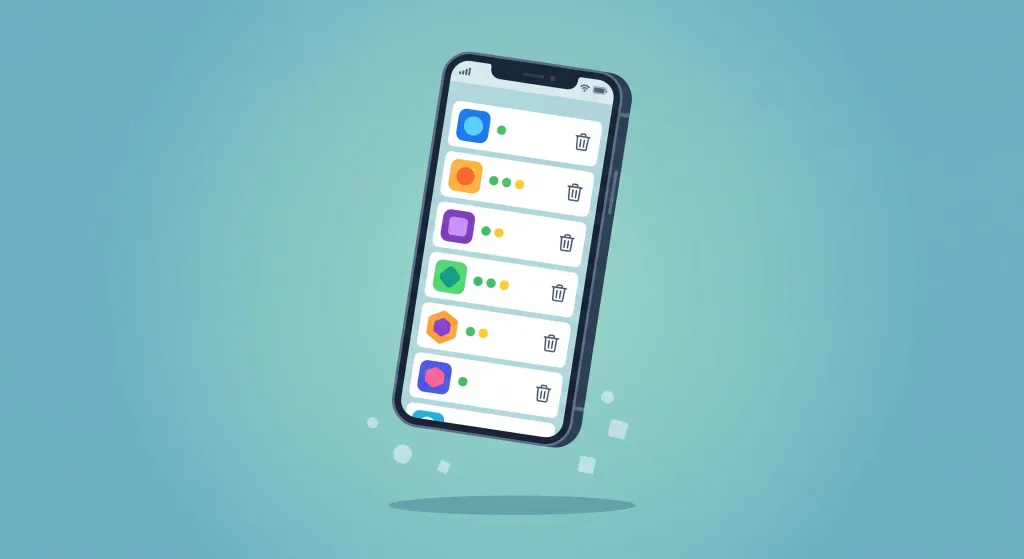
Canta is an open-source uninstaller that runs on top of Shizuku. It needs Android 9 or newer, and it labels apps using a universal debloat list, so you can see which ones are considered safe to remove.
- Install Canta (the F-Droid listing is the safest source for updates).
- Open it and grant the Shizuku permission when prompted.
- Search or scroll the app list. Pay attention to the recommendation badges.
- Select an app, tap the trash button, and confirm.
Pro Tip: Remove apps in small batches of three or four, then reboot and use the phone for a day. If something breaks, you know exactly which batch caused it.
Be conservative. If you don’t recognize an app and Canta doesn’t flag it as safe, leave it alone. Canta’s own page says it won’t brick your device, but if you remove something essential and get stuck in a bootloop, the fix is a factory reset. Back up first.
Step 3: Make your keyboard yours with Keys Cafe
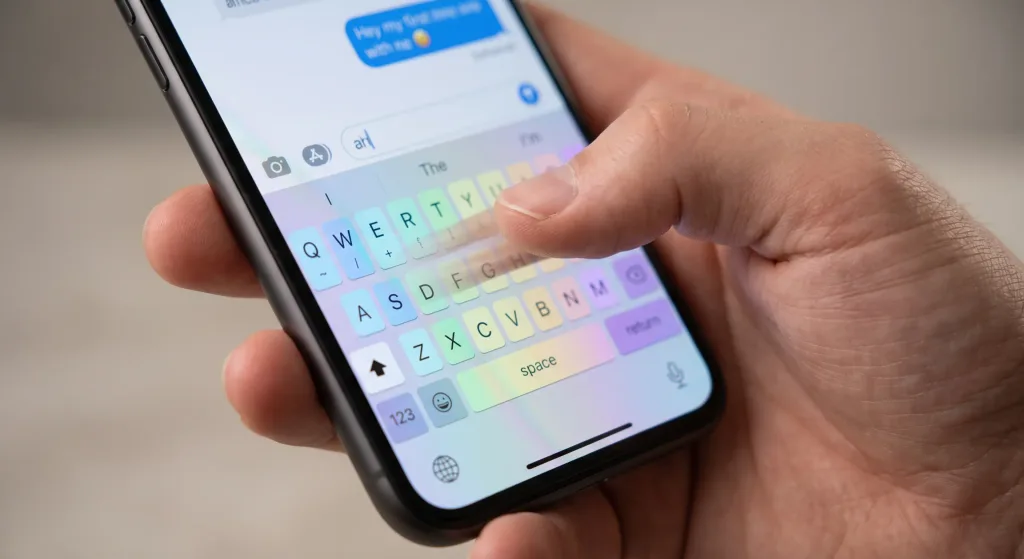
Debloating is the subtraction. Keys Cafe is the addition. It’s a module inside Samsung’s Good Lock app that customizes the Samsung keyboard. The One UI 8 version, covered in Samsung’s own announcement, brings:
- A redesigned home screen with typing stats, such as trends, common typos, and most-used words
- More control over key shapes and colors
- Multiple saved keyboard themes
- Two-finger and three-finger gesture shortcuts
- A sticker creator and typing games
Install it from the Galaxy Store (or through Good Lock), open it, and start with a theme and key colors. Then move to gestures, which is where it gets genuinely useful. Older phones on One UI 4 to 7 get an earlier version of the app, and it still handles key resizing and remapping.
What can go wrong
- Shizuku stops working. Re-pair via Wireless debugging. Samsung and other manufacturers modify Android in ways that can interfere, and the Shizuku guide says as much.
- An app you removed was needed. Reboot first. If the phone still misbehaves, a factory reset is the guaranteed fix, which is why you back up first.
- Updates bring things back. Check Canta after major system updates.
Frequently Asked Questions
Can I debloat Android without root safely?
Mostly, yes. Canta uses a recommendation list and doesn’t touch the system partition, but removing a core system app can cause a bootloop that only a factory reset fixes. Go slowly and back up.
Do I need a computer to use Shizuku?
Not on Android 11 or newer. Wireless debugging lets the phone pair with itself over Wi-Fi. Android 10 and older need a PC and a cable.
Does Keys Cafe work with Shizuku?
No. Keys Cafe is a Samsung Good Lock module and works on its own. Shizuku is only needed for Canta.
Will this void my Samsung warranty?
Nothing here unlocks the bootloader or flashes new software, so it’s far less invasive than rooting. I couldn’t find an official Samsung statement on this, so check your region’s warranty terms before you start.
Final thoughts
Fifteen minutes of setup gets you a cleaner app drawer and a keyboard that finally behaves. Start small, back up first, and enjoy the extra rope.