
Earlier this year, on Arch, it took me days to get my laptop’s hybrid graphics working on Wayland. The laptop pairs an Intel chip with an Nvidia GeForce MX450, and somewhere around day two I seriously considered giving up and logging into X11 instead.
That escape hatch is gone now. GNOME removed its X11 session in March, KDE Plasma followed in October, and Fedora 45, which I run, ships the Wayland-only Plasma. So the Wayland problems that are left are everyone’s problems, and this guide covers what still breaks in 2026 and how to fix each one.
A correction first. In my GNOME vs KDE comparison back in September, I said KDE keeps X11 available for anyone who needs it. That stopped being true with Plasma 6.8.
There’s No X11 Session to Run Back To
Quick background. X11 is the decades-old system that draws windows on a Linux desktop. Wayland is its replacement, designed so apps can’t freely watch or control each other, which is good for security and the root cause of most of the breakage below.
Old X11 apps still run. They go through XWayland, a compatibility layer that runs them inside your Wayland session. What’s gone is the option to log into a whole X11 desktop.
Here’s where the two big desktops stand:
| GNOME | KDE Plasma | |
|---|---|---|
| Last version with an X11 session | GNOME 49, disabled by default | Plasma 6.7 |
| Wayland-only since | GNOME 50, March 2026 | Plasma 6.8, October 14, 2026 |
| Old X11 apps | Run through XWayland | Run through XWayland |
The good news is that the list of serious gaps is short. KDE keeps a public list of significant Wayland issues, and as of its October 27 edit it’s down to a handful: no saved window positions, no multi-user headless remote desktop, no manual gamma controls, and a few niche items for graphics tablets and global menus.
Not sure which session you’re in? Open a terminal and run:
echo $XDG_SESSION_TYPEIf it prints wayland, everything in this guide applies to you.
Screen Sharing in Video Calls
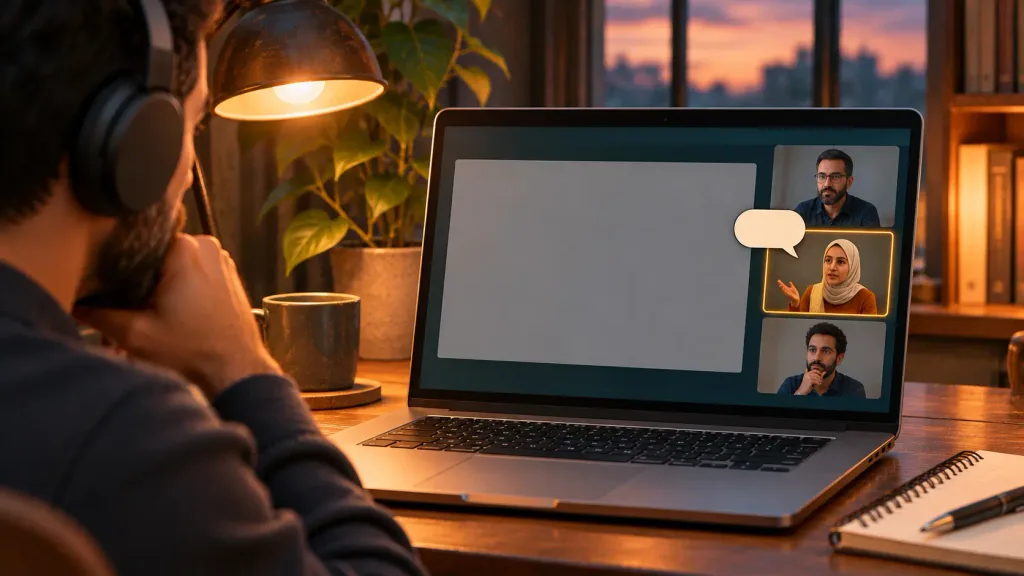
Until earlier this year, sharing my desktop in Google Meet was always a hassle. I’d be in the middle of presenting and someone would tell me my screen had stopped showing for them for a while.
On X11, any app could grab the screen whenever it liked. Wayland doesn’t allow that. Screen capture goes through a portal, a system service that pops up a dialog asking you what to share, and PipeWire, the service that carries the video stream. If either one is missing or misbehaving, sharing fails, freezes, or drops out.
Work through this checklist in order:
- Check the portal backend. KDE needs
xdg-desktop-portal-kdeand GNOME needsxdg-desktop-portal-gnome. Both come with the desktop on mainstream distros, but minimal installs and desktop swaps can leave the wrong one behind. - Check PipeWire is running. Run
systemctl --user status pipewire wireplumber. Both should say active. - Run your browser natively on Wayland. Firefox has done this by default since version 121, and Chrome and most Chromium browsers switched to native Wayland by default in version 140. If you set the
ozone-platform-hintflag to X11 years ago, set it back to Default. - Restart the portal after updates. If sharing breaks right after a big update, log out and back in before you start digging.
Zoom’s desktop app deserves its own warning. You need to pick PipeWire mode under Settings > Share Screen > Advanced. Even then, users on Zoom’s own community forum report that sharing only works the first time per session, with reports still coming in this September. Until Zoom fixes it, restart the app between shares or join from the browser.
Pro Tip: In Meet or any browser call, share a single tab instead of your whole screen when you can. Tab sharing happens inside the browser and never touches the portal, so there’s one less thing to break mid-presentation.
If you install apps from Flathub, they go through the same portals, which is one more reason the portal backend matters. I covered how Flatpak sandboxing works in my Flatpak vs Snap vs AppImage guide.
Nvidia and Hybrid Graphics Laptops
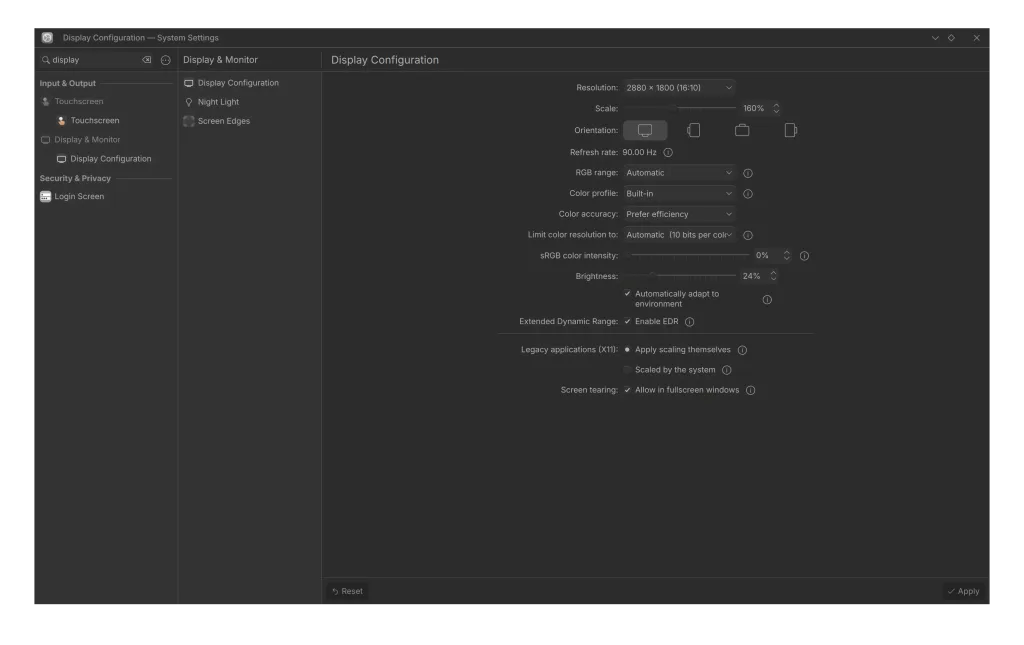
This is where my days went.
Plain Nvidia on Wayland is in much better shape than its reputation. KDE’s announcement of the Wayland-only switch says cards Nvidia still supports now work fine. Plasma 6.8 also turned on triple buffering by default for Nvidia GPUs, and GNOME 50 added workarounds for Nvidia stuttering.
Nvidia’s own Wayland support notes for the 595 driver series list what’s still different. Two matter for normal users:
- The
nvidia-settingsapp can’t configure displays on Wayland. Use your desktop’s display settings instead. - The driver now enables kernel modesetting (
nvidia-drm.modeset=1) by default, so older guides telling you to add it by hand are out of date.
Hybrid laptops add a second layer. Two GPUs, an integrated one that’s light on power and a discrete Nvidia one, have to cooperate, and the compositor (the part of the desktop that draws everything on screen) has to pick which one drives the display.
The setup that works for most laptops
- Let the Intel or AMD chip run the desktop. That’s the default, and it keeps battery life sane.
- Send heavy apps to the Nvidia card on demand. Install
switcheroo-controland enable its service:
sudo systemctl enable --now switcheroo-control
switcherooctl list
switcherooctl launch blender
Once the service runs, both GNOME and KDE can also launch an app on the dedicated GPU from its right-click menu or launcher settings.
- Watch your external monitor ports. On many laptops the HDMI port is wired to the Nvidia chip. A monitor on that port forces both GPUs to pass frames back and forth, and that’s a common source of lag on hybrid machines.
When KDE picks the wrong GPU
KWin, Plasma’s compositor, decides GPU order with the KWIN_DRM_DEVICES setting. First see which card is which:
ls -l /dev/dri/by-path/Then add a line to /etc/environment with the card you want driving the desktop listed first, for example KWIN_DRM_DEVICES=/dev/dri/card1:/dev/dri/card0, and reboot.
Card numbers can change after kernel or driver updates. If you end up at a black screen after login, switch to a text console with Ctrl+Alt+F3, log in, delete that line, and reboot.
Pro Tip: Before a driver update on a hybrid laptop, make sure you can roll back. On Fedora I keep Btrfs snapshots I can boot from the GRUB menu, which I described in my distro-hopping post. A bad Nvidia update then costs one reboot.
Global Shortcuts and Automation Scripts
On X11, every app could read every key you pressed. That made global hotkeys easy, and it also made every app a potential keylogger. Wayland stopped that, and two kinds of tools broke along the way.
Global shortcuts now go through a portal too: the app asks, you approve, and the desktop passes along only that key combination. KDE has supported this for years, and GNOME added it in version 48. Apps that still use the old X11 method need a fallback.
On KDE, that fallback is a switch: System Settings > Application Permissions > Legacy X11 App Support. Setting it to allow lets X11 apps receive global shortcuts and simulate input. It’s off by default for a reason, so only widen it if an app you need breaks without it.
Automation scripts built on X11 tools need replacements:
| X11 tool | Wayland replacement | Notes |
|---|---|---|
xdotool (typing, clicks) | ydotool | Works on any desktop; needs its ydotoold background service running |
xdotool (moving windows) | kdotool | KDE only, uses KWin scripting |
xclip, xsel | wl-copy, wl-paste | From the wl-clipboard package |
xrandr | kscreen-doctor, kscreenctl | KDE; kscreenctl is new in Plasma 6.8 |
GNOME has no built-in equivalent of kdotool for window control. If your scripts rearrange windows, KDE is the easier home for them right now.
Blurry Old Apps With Fractional Scaling
Fractional scaling means sizes like 125% or 150%, common on laptop screens. Native Wayland apps handle it cleanly. Old X11 apps running through XWayland can come out soft or blurry.
On KDE, go to System Settings > Display & Monitor and find Legacy Applications (X11):
- Apply scaling themselves keeps old apps sharp, but some of them come out tiny, and multi-monitor setups with different scales can confuse them.
- Scaled by the system gets the size right but adds blur.
Neither is wrong. Pick based on which old apps you use most, and switch back if something looks off.
On GNOME, fractional scaling is turned on by default since GNOME 50, according to the GNOME 50 release notes. For sharper X11 apps, GNOME has an experimental option:
gsettings set org.gnome.mutter experimental-features "['xwayland-native-scaling']"Log out and back in afterwards. Some apps will then look too small, the same trade-off as KDE’s first option. To undo it:
gsettings reset org.gnome.mutter experimental-featuresThe cleanest fix is the app itself. Chromium-based browsers and many Electron apps look blurry only when they’re stuck on XWayland, so check their settings or flags for a native Wayland mode first.
Remote Desktop, X11 Forwarding, and Window Positions
Remote desktop works on both desktops for the person already sitting at the computer. Plasma has a built-in RDP server, and 6.8 added copy and paste in both directions. GNOME 50 added hardware-accelerated remote sessions and better support for headless logins.
What’s still missing on KDE is multi-user headless RDP, the server-style setup where several people log into separate sessions on one machine. If you need that today, it’s a job for a long-term-support distro that still ships X11.
X11 forwarding over SSH still works, through XWayland. For native Wayland apps, waypipe does the same job.
Window positions are the everyday annoyance. Native Wayland apps don’t get to place their own windows, so many open in the middle of the screen every time. KDE can’t save and restore them automatically yet, and GNOME postponed its session restore feature from GNOME 50.
On KDE you can fix individual apps: right-click the title bar, choose More Actions > Configure Special Window Settings, add Position, and set it to Remember. GNOME has nothing built in for this, so you’d need an extension.
What If You Truly Need X11?
For most people, the fixes above are enough. If they aren’t, KDE spells out the options on its known-issues page:
- Plasma 6.6 LTS keeps the X11 session and is supported until early 2029.
- Plasma 6.7 keeps it too, with support ending in early 2027.
- Long-term distros such as AlmaLinux 9 ship the Plasma X11 session with support until 2032, according to KDE.
That’s a holding pattern. New features land on Wayland only now, so the gap will widen every release.
Most Wayland Problems Now Have a Known Fix
Wayland in 2026 isn’t the unfinished thing it was five years ago. What’s left is a short list of specific gaps, and most of them have a fix or a workaround today.
Hybrid graphics shows the pattern best. The driver, the compositor, and the way the laptop’s ports are wired all have to agree, and Wayland makes every disagreement visible. That’s true of nearly every problem in this guide.
When something breaks, ask which layer owns it: the portal, the driver, the compositor, or an app that still assumes it’s 2010. Find the layer and the fix is usually a package, a setting, or one line in a config file.
Frequently Asked Questions
Can I still run X11 apps on Wayland?
Yes. They run through XWayland, which ships with both GNOME and KDE Plasma. Only the full X11 login session was removed.
Why does my screen share show a black screen on Wayland?
Usually the portal backend or PipeWire isn’t running, or the app is using an old X11 capture method. Check that your desktop’s portal package is installed, PipeWire is active, and the app runs natively on Wayland.
Do Nvidia GPUs work on Wayland in 2026?
Cards Nvidia still supports work well with current drivers on both desktops. Hybrid laptops need more care: let the integrated GPU drive the desktop and launch heavy apps on the Nvidia card with switcheroo-control.
How do I go back to X11 on KDE Plasma?
Not on Plasma 6.8 or newer. You’d need Plasma 6.6 LTS, Plasma 6.7, or a long-term distro that still ships the Plasma X11 session.