
In 2009 I installed KDE, decided it was trying very hard to look like Windows XP, and went back to GNOME on Ubuntu a couple of days later. I didn’t give it another serious look for sixteen years.
Today KDE Plasma runs on my laptop, and I don’t plan to install GNOME again any time soon. Here’s what changed my mind, and the parts I still don’t like.
Sixteen Years of GNOME, On and Off
Ubuntu was my introduction to Linux in 2006, which meant GNOME 2. When GNOME 3 arrived, it became my default for years.
I wandered off more than once, including the years Ubuntu shipped its own Unity desktop. Last year I even gave Xfce a couple of months. Some friends of mine use it because they want the most minimal desktop possible. Every time, I came back to GNOME.
Then, around this time last year, I gave Plasma a proper try. I didn’t give it two days and a verdict this time. I sat down and configured it. Everything I missed about the old GNOME 2 experience was there, plus features I’d never had.
The last GNOME I used was version 49.
Why KDE Plasma Won Me Over: I Can Change Anything in a Minute
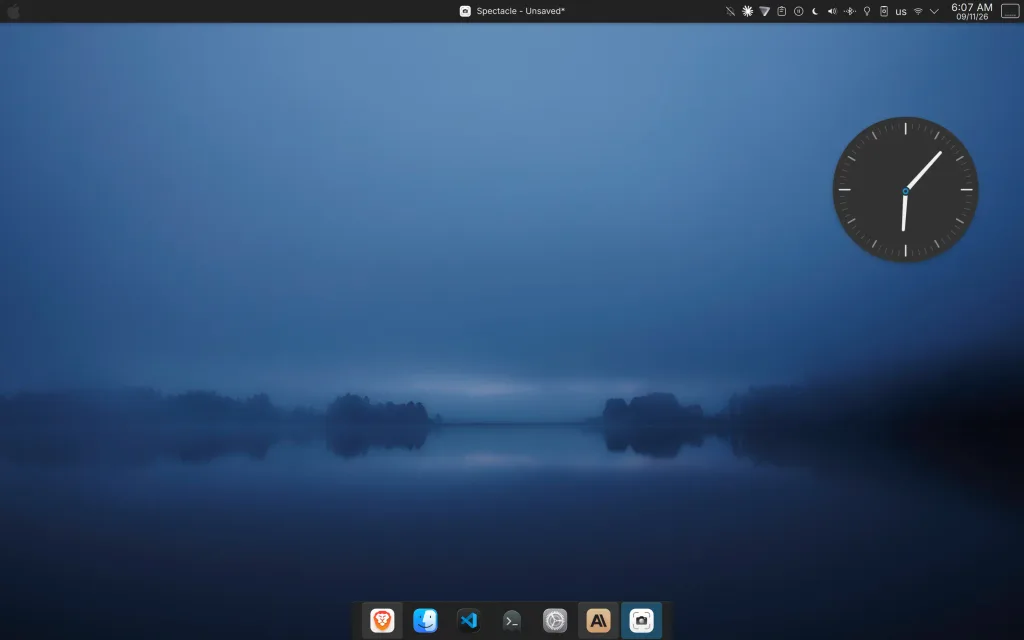
If KDE took away everything except one feature, I’d keep this one: I can change how any part of it looks, quickly, and end up with a desktop that feels new.
Right now my desktop has a bar across the top with the app menu and system tray, a dock at the bottom, and a big analog clock widget. It looks a lot like a Mac. That’s MacTahoe-kde, a macOS-style global theme.
Next month it might be Darkly instead, a modern application style for Qt apps (Qt is the toolkit KDE apps are built with). I switch between the two every now and then, the way some people rearrange furniture.
Switching takes a few clicks: System Settings > Colors & Themes > Global Theme, then Get New to search the KDE Store from inside the settings app. No extensions to install, no terminal.
The settings I actually changed go well beyond looks: desktop effects, window rules, power options, and mouse and touchpad behavior. Window rules are the one I’d show off first.
KDE Window Rules: A Five-Minute Fix for Picture-in-Picture
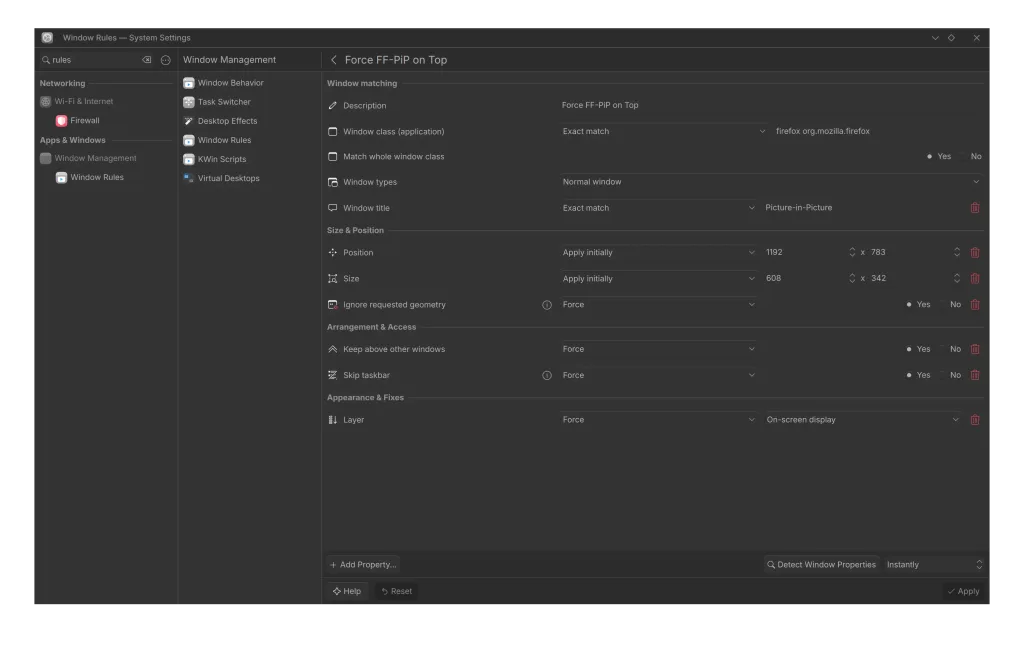
Window rules let you tell Plasma how a specific app’s windows should behave: where they open, how big they are, whether they stay on top. You don’t write any code; it’s all forms in System Settings.
I wanted every browser picture-in-picture video to open in the bottom-right corner at the same small size, floating above everything. It took me five minutes. Here’s the rule I use for Brave:
| Property | My setting | What it does |
|---|---|---|
| Window class | Exact match: brave brave-origin | Targets Brave’s windows only |
| Window title | Exact match: Picture in picture | Targets only the PiP window |
| Position | Apply initially: 1400 x 900 | Opens it near the bottom-right of my screen |
| Size | Apply initially: 400 x 225 | A small 16:9 window |
| Ignore requested geometry | Force: Yes | Stops the browser overriding my position and size |
| Keep above other windows | Force: Yes | It floats over whatever I’m working on |
| Skip taskbar | Force: Yes | No extra entry cluttering the dock |
| Layer | Force: On-screen display | Keeps it above almost everything else |
I have a copy of the same rule for each browser I use, with only the window class changed. The position numbers depend on your screen size, so treat mine as a starting point.
Pro Tip: Don’t type the window class by hand. Open a PiP video, go to System Settings > Window Management > Window Rules, add a new rule, and click Detect Window Properties. Then click the PiP window, and Plasma fills in the class and title for you.
The Effects I Keep On
Plasma’s desktop effects range from useful to purely silly. These are the ones I leave enabled:
- Overview, for seeing all my windows and desktops at once
- Hide Cursor, which gets the mouse pointer out of the way
- Desaturate Unresponsive Applications, which turns a frozen app gray so I know it’s stuck before I start clicking
- Dialog Parent, which dims a window while one of its dialogs is open
- Dim Screen for Administrator Mode, which dims everything when a password prompt asks for admin rights
- Translucency
On top of those I installed Better Blur DX, a community fork of Plasma’s blur effect with extra options.
To be fair to GNOME, Better Blur DX comes with its own fine print. Its documentation says it only works with the exact KWin version it was built for and needs rebuilding after an upgrade. Fedora users can get it from a community COPR repository that does the packaging. Plasma’s built-in settings are stable, but third-party add-ons have the same weak spot as GNOME extensions.
The KDE Apps I Actually Use
KDE Connect is the one I’d miss most. It links my Android phone and laptop over the local network. I use it for a shared clipboard and phone notifications on the desktop. Sometimes, when I’m watching something on the laptop and too comfortable to move, I lazily use my phone as a touchpad.
GNOME users can get most of this through GSConnect, a GNOME extension that reimplements KDE Connect. On Plasma it’s built in.
KWrite is my quick text editor, and Spectacle takes my screenshots, including the ones in this post.
I recently switched my terminal from Konsole to Kwi, a new KDE terminal built on the same core library as the Ghostty terminal and drawn by the graphics card. Its developer, Eike Hein, announced it on November 1 as an experiment, and it didn’t even have a tagged 0.1 release yet. If you try it, treat it as early software.
Three Distros, One Desktop
This year my laptop went from Fedora to Arch, then to CachyOS, then back to Fedora. My Plasma setup moved with me every time, because KDE keeps its settings in my home folder.
It came back fully working every time. That includes the move back to Fedora, which meant going down to an older Plasma version than the one I’d been running on the Arch-based distros.
Today I’m on Fedora 45 with Plasma 6.8.2 on Wayland.
One correction while I’m here. In my September GNOME 50 vs KDE Plasma comparison, I praised KDE for keeping the old X11 session available. That’s no longer true. KDE announced last year that Plasma 6.8 would be Wayland-only, and 6.8 shipped that way in October. Older X11 apps still run through a compatibility layer called XWayland. You just can’t log into a Plasma X11 session anymore.
What I Don’t Love About KDE Plasma
I’m not blind to the rough spots.
- Breeze. I can’t stand the default theme. It looks nothing like any desktop theme I’ve used on any operating system, and replacing it was the first thing I did.
- Kate. KDE’s full code editor gets a lot of praise. I think it’s overrated, and KWrite covers what I need from a text editor.
- Konsole. It always felt like legacy software to me, even though I can’t remember it ever giving me trouble.
- Setup time. Plasma can be configured however you like, which also means configuring it takes time. My first try in 2009 lasted two days. The one that stuck started with an evening of tweaking.
Should You Start With KDE?
If you’re trying Linux for the first time, I’d start with KDE Plasma.
Making it look and work exactly the way you want can be a hassle at first. Give it some time and a few evenings of tweaking, and I think you’ll end up loving it as much as I do.
In 2009 I dismissed KDE as a Windows XP lookalike. In 2026 it looks like a Mac on my laptop, because I set it up that way, and next month it may look like something else entirely.
Frequently Asked Questions
Is KDE Plasma good for Linux beginners?
Yes. The default layout, with a taskbar at the bottom and an app launcher in the corner, feels familiar to Windows users. Changing everything else takes some time to learn, but you can do it all from System Settings.
Does KDE Plasma still support X11?
Not as a desktop session. Plasma 6.8 is Wayland-only, though X11 apps still run through XWayland. KDE is maintaining the Plasma 6.7 series, which still has the X11 session, only until early 2027.
Can I use KDE Connect without KDE Plasma?
Yes. KDE Connect runs on other Linux desktops, Windows, and macOS, with phone apps for Android and iOS. On GNOME, the GSConnect extension provides a similar experience.