

Brave got a perfect report card from me. On every pass of the EFF’s privacy test, it came back with “strong protection against Web tracking.” Restart, private window, brand-new profile: strong, strong, strong.
Then I opened a commercial tracker’s demo page, and it gave Brave the exact same visitor ID in all five runs. Private window, same ID. Fresh profile with no history at all, same ID.
That gap is what this post is about. I ran the same browser fingerprinting test across Firefox, Brave, and Chrome, in fresh profiles, private windows, and stricter configurations, to see which setups actually change how you look to a tracker. The short version: the scores and the tracker disagreed, and the tracker is the one that matters.
What a browser fingerprint is

A fingerprint is a profile of your device built from details your browser hands to every website: screen size, installed fonts, graphics card, timezone, language, how your machine draws an image or processes a sound. None of those details is secret on its own. Together, they can be distinctive enough to pick you out of a crowd.
The scary part is that nothing gets stored on your computer. Cookies live in your browser, so you can delete them. A fingerprint gets recalculated every time you visit, so there’s nothing to delete.
That’s why “private window” and “fresh profile” are the interesting tests. Both wipe stored data. Neither, in theory, changes your hardware.
How I ran the browser fingerprinting test
Everything ran on my Fedora KDE laptop, on the same internet connection, with three browsers:
- Firefox 160, my daily browser, with uBlock Origin installed
- Brave 1.99.57
- Chrome 157, with uBlock Origin Lite installed
I used three test sites, because they measure different things:
- fingerprint.com’s demo: a commercial identification service that real websites pay for, mostly for fraud detection. It gives you a visitor ID and tries to recognize you on later visits. This is the closest thing to a real tracker you can test against for free.
- CreepJS: an open-source research tool that digs into dozens of browser features and spits out a fingerprint hash.
- EFF’s Cover Your Tracks: the best-known privacy checker, which gives you a plain-English verdict.
Each browser went through the same passes: my normal profile, the same profile after a full restart, a private window, a brand-new profile, and that new profile with a stricter fingerprinting setting turned on. For Chrome, I used Guest mode instead of a new profile and skipped the configuration pass.
The results, side by side
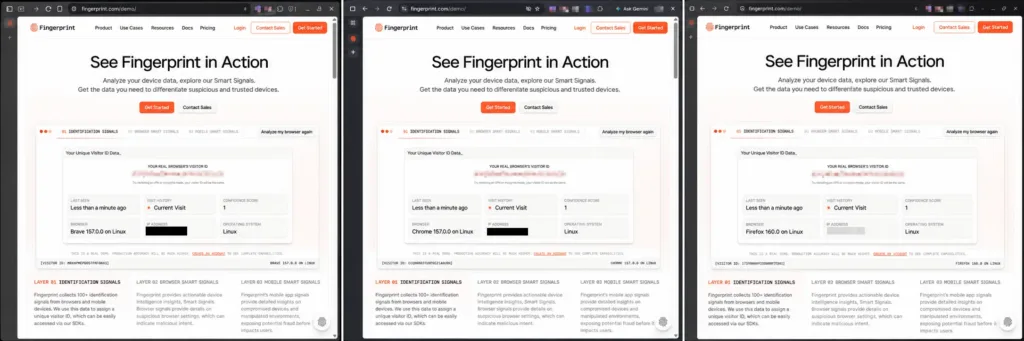
The question I cared about most: did fingerprint.com recognize me as the same visitor as my normal profile?
| Pass | Firefox 160 | Brave 1.99 | Chrome 157 |
|---|---|---|---|
| After restart | Same ID | Same ID | Same ID |
| Private window | Same ID | Same ID | Same ID |
| Fresh profile (Guest for Chrome) | New ID | Same ID | Same ID |
| Fresh profile + stricter setting | New ID (matched the fresh profile) | Same ID | Not tested |
Now compare that with what the other two tools said:
| Browser | CreepJS fingerprint hash | Cover Your Tracks verdict |
|---|---|---|
| Firefox | Different on every single pass | Strong in my profile, “some gaps” in the fresh profile |
| Brave | Same after restart, different in private window and new profile | Strong on every pass |
| Chrome | Identical on every pass, Guest included | “Some gaps,” then “not protected” in Guest |
Read those two tables together and you get three different stories about the same browsers. Firefox looks like a shapeshifter on CreepJS, but fingerprint.com saw through it in a private window. Brave looked best on Cover Your Tracks and was the one browser that couldn’t shake fingerprint.com at all, even in a profile with no history. Chrome was at least honest: same fingerprint everywhere, on every tool.
Fresh profiles, private windows, and stricter settings
Private windows don’t touch your fingerprint
All three browsers got the same fingerprint.com ID in a private window as in my normal profile. That’s not a bug in any of them. Private browsing is designed to forget your history and cookies when you close it, not to change what your machine looks like.
Firefox is the interesting case here. Mozilla says its newest fingerprinting protections, which shipped in Firefox 145, are switched on in Private Browsing and in Strict tracking protection mode, with a plan to enable them by default later (Mozilla Security Blog). So my private window had the extra protections active, and fingerprint.com still recognized me.
A fresh profile helped in one browser only
Firefox was the only browser where a new profile produced a new fingerprint.com ID. Brave and Chrome were recognized straight away.
All three browsers ran from the same internet connection, with the same IP address, so the network didn’t change between passes. Something inside Firefox’s fresh profile did.
I’ll be careful about the reason. The fresh Firefox profile had no uBlock Origin and default settings, so several things changed at once…
Stricter settings didn’t move the needle
In Firefox, I turned on privacy.resistFingerprinting in the fresh profile. This is the hardcore option: it reports a generic timezone, limits fonts, and fakes a long list of hardware details. Mozilla doesn’t recommend it for normal use because it often breaks websites (Mozilla Support). If you’ve read my Firefox about:config post, you know I’m wary of flipping switches like this.
The result was anticlimactic. fingerprint.com gave me the same ID as the fresh profile without it, and Cover Your Tracks didn’t change its verdict.
Brave was even flatter. Brave officially retired its Strict fingerprinting mode back in version 1.64 (Brave), and switching the fingerprinting setting in my fresh profile produced the exact same CreepJS hash and the same fingerprint.com ID. As far as both tools could tell, nothing happened.
Why a good browser fingerprinting test score can mislead you

So how does Brave end up with the best grade and the stickiest ID? Because the tests aren’t measuring the same thing.
Cover Your Tracks mostly grades your blocker
Cover Your Tracks loads several fake tracking domains and checks whether your browser blocks them (EFF). That’s a useful test, but it’s largely a test of your content blocker.
My results line up with that almost perfectly. Firefox scored “strong” in the profile with uBlock Origin and dropped to “some gaps” in the fresh profile without it. Chrome scored “some gaps” with uBlock Origin Lite and “not protected” in Guest mode, where my extension wasn’t running. Brave has its blocker built into Shields, so it scored “strong” everywhere.
The verdict followed the blocker. It didn’t follow the fingerprint.
Randomization fools hashes, not trackers
Brave and Firefox both add small random noise to some fingerprinting signals. That’s why CreepJS gave Firefox a new hash on every pass. A test that hashes your fingerprint sees a “different person” each time and rewards you for it.
A commercial tracker doesn’t need a perfect hash match. Brave’s own documentation points out that server-side services like Fingerprint Pro combine browser attributes with your IP address and the time of your visit (Brave on GitHub). If most of your signals stay put, a bit of noise on a few of them doesn’t save you. My Firefox CreepJS hash changed five times, and fingerprint.com didn’t care.
There’s an odd detail in my Brave numbers too. Brave’s documentation says its random seed changes per session, but my CreepJS hash was identical before and after a restart. I can’t explain that from the outside. It’s another reason not to treat one test run as gospel.
Blocklists can’t block the site you’re on
Brave’s documentation also says Shields blocks requests to known fingerprinting services, including fingerprint.com’s domains. That’s real protection when a fingerprinting script is a third party hiding on someone else’s page.
On the demo, though, fingerprint.com was the page. Blocklists are built to stop outsiders, and a site fingerprinting its own visitors isn’t an outsider. That’s a limitation every blocker shares, not just Brave’s.
Pro Tip: When you test your browser, treat a commercial demo like fingerprint.com as the real exam and the free checkers as homework. If the demo still recognizes you in a private window, your setup isn’t hiding your device, whatever the badge says.
What actually helps your privacy
None of this means privacy settings are pointless. It means each one does a specific job, and you should know which job you’re paying for.
- Keep a good content blocker. Stopping third-party tracking scripts is the job uBlock Origin and Brave Shields do well, and it’s the one Cover Your Tracks confirmed in my tests. My mobile tracker blocking guide covers the same idea on phones.
- Stop expecting private windows to hide you. They’re for not leaving traces on your own computer. They don’t make you a stranger to websites.
- Use separate browsers for separate identities, but don’t count on it. It worked in Firefox for me. It didn’t in Brave or Chrome.
- Think about your network. Your IP address is part of the picture, which is why Brave’s own docs recommend a VPN alongside its protections. I didn’t test that here, so I can’t tell you how much it changes.
- Skip the scoreboard chasing. Flipping
resistFingerprintingchanged nothing that fingerprint.com could see, and it comes with broken websites. If you’re on Firefox and want the newer protections in every window, Strict tracking protection is the supported route.
I didn’t test the Firefox forks this time. LibreWolf and Mullvad Browser take a different approach, trying to make all their users look identical rather than random, and they deserve their own round. I covered the forks from a daily-use angle in my Firefox forks comparison.
FAQ
Does incognito or private mode stop browser fingerprinting?
No. In my tests, all three browsers kept the same fingerprint.com ID in a private window. Private mode deletes your local history and cookies when you close it. Your device looks the same as before.
Is Brave or Firefox better at stopping fingerprinting?
In my runs, Firefox was the only browser that got a fresh ID from fingerprint.com, and only with a brand-new profile. Brave scored better on Cover Your Tracks but was recognized on every pass. That’s one machine and one tracker, so take it as a data point, not a ranking.
Which browser fingerprinting test should I trust?
Use more than one. Cover Your Tracks is good for checking whether your tracker blocking works. fingerprint.com’s demo is closer to what a real identification service sees, because it can recognize you across visits instead of just describing your browser.
Does a VPN stop fingerprinting?
A VPN hides your IP address, which is one of the signals trackers combine. It doesn’t change your screen, fonts, or graphics card, so it can’t hide your device on its own.
The badge isn’t the protection
I went in expecting the stricter setups to win. Instead, the most useful thing I learned was which tool to believe. A green verdict from a privacy checker tells you your blocker works. It doesn’t tell you a tracker has lost you.
Run the fingerprint.com demo in your own browser, then open a private window and run it again. If the two IDs match, you’ve learned more about your privacy in two minutes than any score will tell you.