
Your phone probably communicates with more companies than you realize. Open a weather app, check the news, or launch a free game, and the app may contact advertising networks, analytics platforms, and other third-party services before you’ve even done anything interesting.
Some of those connections serve legitimate purposes, such as crash reporting. Others help companies build profiles of your behavior across different apps and websites.
The annoying part? You don’t necessarily get a meaningful choice about every connection.
Fortunately, you can block a significant amount of unwanted tracking without rooting your Android phone, jailbreaking your iPhone, or turning your device into a weekend troubleshooting project.
The trick is understanding that there’s no single switch that blocks every tracker. DNS filtering, browser protection, and operating-system privacy controls each solve a different part of the problem.
Here’s how to combine them without making your phone miserable to use.
What Exactly Is Tracking Your Phone?
Let’s distinguish a few things that often get lumped together.
First-party tracking happens when an app collects information about how you use its own service. A streaming app might record what you watch to recommend something else.
Third-party tracking involves outside companies collecting information through components embedded in apps or websites. An advertising SDK (Software Development Kit), for example, can help an advertiser measure activity across multiple apps.
Then there’s browser tracking, where websites use cookies, scripts, and other techniques to recognize visitors across different websites.
These mechanisms overlap, but they’re not identical.
Blocking a known advertising domain can stop some network requests. It doesn’t necessarily prevent an app from collecting information internally or sending it to the company’s own servers.
Similarly, rejecting cookies doesn’t automatically prevent browser fingerprinting, which uses combinations of browser and device characteristics to help recognize users.
That’s why effective mobile privacy requires layers of protection.
DNS Blocking: The Easiest Place to Start
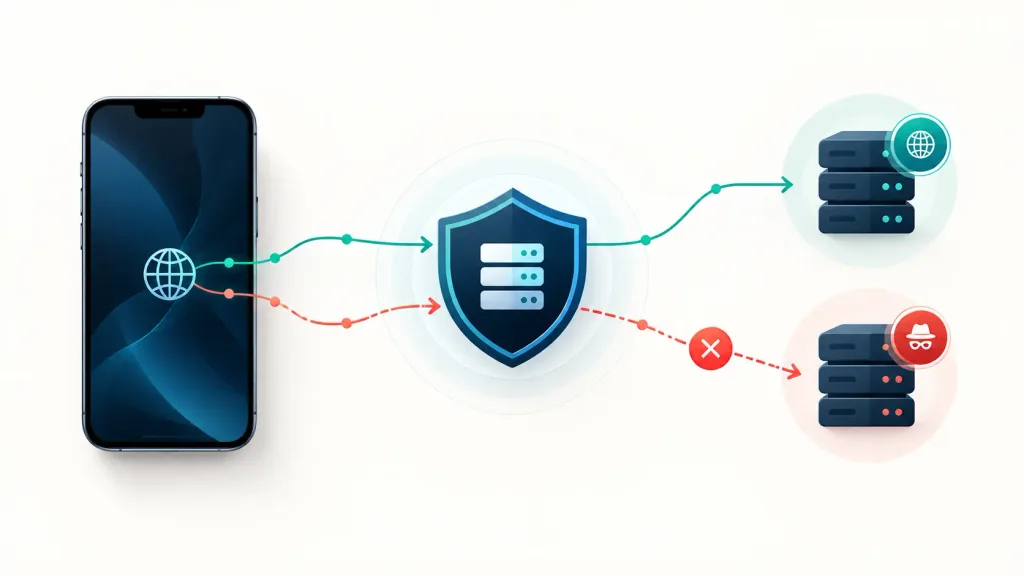
Whenever an app wants to connect to a domain such as analytics.example.com, it generally needs to resolve that name to an IP address.
That’s where DNS (Domain Name System) comes in.
A filtering DNS provider checks the requested domain against lists of known advertising, tracking, and malicious domains. If the domain is blocked, the provider prevents normal resolution of that request.
The result? Many unwanted connections fail before the app can establish them.
Services such as AdGuard DNS and NextDNS provide this type of filtering.
What DNS filtering can and cannot do
DNS filtering has several advantages:
- It can protect multiple apps, not just your browser.
- It generally requires little maintenance.
- It doesn’t need root or jailbreak access.
- It can work on Wi-Fi and cellular connections when configured at the device level.
- It can block domains associated with advertising, analytics, and malicious activity.
But there’s an important limitation.
DNS filtering operates on domain names, not individual pieces of website content.
If an app delivers its essential functionality and tracking through the same domain, blocking that domain might break the app. Allowing it might let the tracking continue.
Some apps also use their own DNS mechanisms, hardcoded IP addresses, or other techniques that can bypass ordinary DNS filtering.
And DNS blocking doesn’t remove every empty advertising space from a website.
Think of it as a useful first line of defense, not complete privacy.
How to Block Trackers on Android Using Private DNS
For most Android users, this is the first change I’d recommend.
Android 9 and later support a system-level Private DNS feature using DNS-over-TLS. This encrypts DNS queries between your device and the configured DNS provider.
An important distinction: Private DNS encrypts DNS traffic, but doesn’t automatically block trackers. You need to select a provider that offers filtering.
Set up AdGuard DNS on Android
- Open Settings.
- Search for Private DNS. On many phones, it’s under Network & Internet or Connections → More connection settings.
- Select Private DNS provider hostname.
- Enter the following hostname:
dns.adguard-dns.com - Tap Save.
That’s it. You’ve configured Android to use AdGuard’s public filtering DNS service.
The hostname above is the provider’s official default DNS-over-TLS endpoint. Don’t include https:// or tls:// in Android’s hostname field.
AdGuard DNS filters known advertising and tracking domains without requiring you to install another application.
If you prefer more control, NextDNS offers configurable blocklists, allowlists, and device-level settings. Its Android setup provides a personalized Private DNS hostname rather than one universal address.
Does this work on Samsung phones?
Yes. Samsung Galaxy devices also support Private DNS on compatible Android versions, although Samsung places the option under a different settings menu.
Searching Settings for “Private DNS” is generally the easiest way to find it.
How to undo the change
Return to the Private DNS settings and choose Automatic.
If your internet stops working after entering the hostname, double-check your spelling and try another network. Some networks interfere with encrypted DNS connections.
Don’t disable Private DNS entirely unless you have a specific reason. Automatic mode normally preserves Android’s default DNS privacy behavior where supported.
Android App Tracking Protection: Going Beyond DNS
DNS filtering is useful, but advanced users may want to see which apps are attempting to contact tracking services.
That’s where network-level filtering tools become interesting.
DuckDuckGo App Tracking Protection
The DuckDuckGo browser for Android includes a feature called App Tracking Protection.
Despite being part of a browser, it can monitor and block known third-party tracker requests originating from other Android apps.
To enable it:
- Install the official DuckDuckGo browser for Android.
- Open its settings.
- Find App Tracking Protection under More from DuckDuckGo.
- Enable the feature and approve the Android VPN connection request.
- Review the tracker-blocking activity in the app.
Why the VPN permission?
Android’s VPN interface allows compatible applications to inspect or route network traffic without root access.
DuckDuckGo uses this interface to identify and block known tracking connections locally. App Tracking Protection itself doesn’t operate like a conventional VPN that sends your traffic through a remote VPN server.
There’s a catch, though.
Android generally allows only one active VPN interface at a time.
If you’re already using another VPN, DuckDuckGo App Tracking Protection won’t normally run alongside it. DuckDuckGo documents an exception for its own VPN service, which can share the interface.
It also deliberately makes exceptions for certain apps and tracking requests to avoid breaking functionality. First-party trackers aren’t blocked by this feature.
So don’t confuse a list of blocked requests with proof that all tracking has stopped.
What about NetGuard?
NetGuard is another option, especially for people who want more granular control.
It’s an open-source Android firewall that allows you to deny internet access to individual applications without root.
Depending on the version and configuration, it can also provide filtering and connection-logging capabilities.
NetGuard isn’t simply a replacement for DuckDuckGo’s tracker protection. Its core strength is controlling which apps can communicate over Wi-Fi or mobile data.
And like DuckDuckGo’s solution, its no-root mode uses Android’s VPN interface.
For most people, configuring both simultaneously isn’t practical. Choose the tool that addresses your main concern.
How to Block Trackers on iPhone
Apple approaches privacy differently from Android.
iOS includes system-level tracking permissions and Safari privacy protections, but it doesn’t expose Android’s equivalent Private DNS hostname field.
That doesn’t mean iPhone users are stuck. It means the setup looks different.
Step 1: Disable app tracking requests
Go to:
Settings → Privacy & Security → Tracking
Turn off Allow Apps to Request to Track.
This prevents apps from asking for permission to track your activity across other companies’ apps and websites.
Apple’s App Tracking Transparency framework also restricts access to the system advertising identifier when permission is denied.
However, this doesn’t mean an app is physically incapable of collecting information or making network connections. It’s a platform permission and policy mechanism, not a universal network firewall.
Apps can still collect information needed for their own services, subject to Apple’s rules and applicable privacy regulations.
Step 2: Enable Safari’s privacy protections
Open:
Settings → Apps → Safari
Make sure Prevent Cross-Site Tracking is enabled.
Safari includes protections intended to limit third-party tracking and cross-site data sharing.
You can also review the Hide IP Address setting, where available, for additional protection against known trackers.
If you use Safari regularly, consider adding a reputable content blocker. These extensions can prevent tracking scripts, advertising resources, and other unwanted website content from loading.
Install a supported blocker through the App Store, then enable it under:
Settings → Apps → Safari → Extensions
Remember that Safari content blockers protect web browsing within their supported scope. They don’t automatically block tracking inside unrelated applications.
Step 3: Add DNS filtering
For broader filtering, you can configure a DNS provider such as NextDNS or AdGuard DNS on iOS.
Unlike Android’s Private DNS setting, iPhone setup commonly uses a DNS configuration profile or a provider application.
Follow the instructions from your selected provider rather than downloading configuration profiles from random websites.
Be particularly careful with profiles: install only those whose source, purpose, and settings you understand.
DNS configuration can also interact with VPNs and other network-management features. If you already use a VPN, check how that service handles DNS before adding another filtering solution.
Step 4: Check App Privacy Report
Apple also provides an App Privacy Report under:
Settings → Privacy & Security → App Privacy Report
Enable it to review how apps access sensitive permissions and which domains they contact.
The report can help you spot unexpected network activity.
It isn’t a tracker blocker itself, and contacting a particular domain doesn’t automatically prove inappropriate tracking. Still, it’s useful for understanding what your apps are doing.
Browser Protection Still Matters
Even with filtering DNS enabled, your browser deserves its own protection.
Browser-level blockers can inspect web content and block certain scripts or resources that DNS filtering cannot distinguish.
For Android users, Firefox’s Enhanced Tracking Protection is a convenient starting point.
Firefox provides three protection levels:
- Standard: Blocks recognized tracking mechanisms while prioritizing compatibility.
- Strict: Applies more aggressive blocking, with a greater chance of breaking some websites.
- Custom: Lets you control selected protection categories.
Enhanced Tracking Protection is enabled by default. You can review it under Settings → Enhanced Tracking Protection.
Firefox also supports site-specific exceptions. That’s useful when an aggressive setting prevents a checkout page, authentication flow, or embedded video from functioning.
On iPhone, Safari with an appropriate content blocker is a reasonable default.
The point isn’t that one browser makes tracking impossible. It’s that DNS filtering and browser protection address different technical mechanisms.
You can use both.
Which Tracker-Blocking Method Should You Choose?
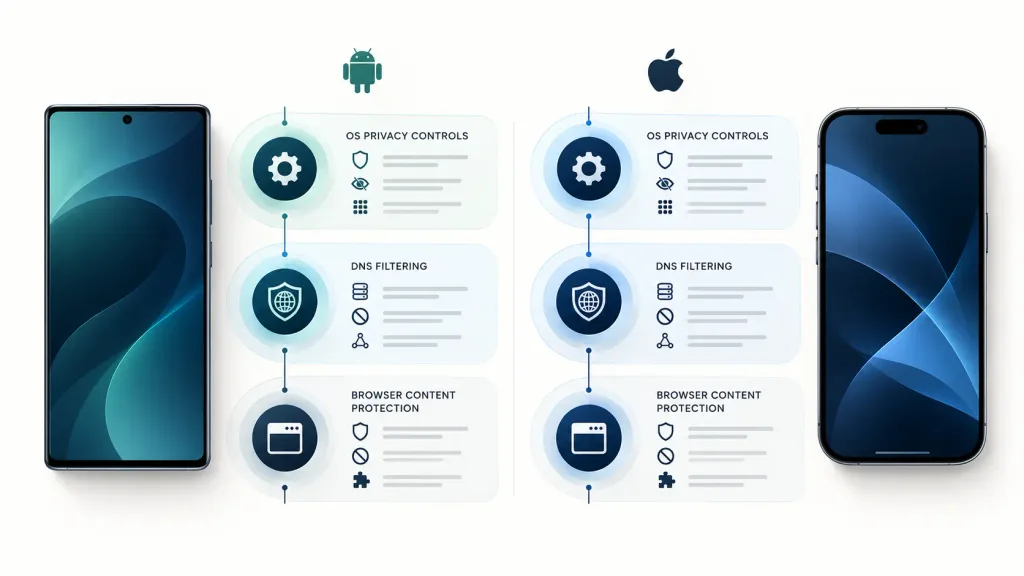
Here’s how the main approaches compare.
| Method | Android | iPhone | Best for |
|---|---|---|---|
| Filtering DNS | Yes | Yes | Simple, broad domain blocking |
| Browser tracking protection | Yes | Yes | Website trackers and scripts |
| DuckDuckGo App Tracking Protection | Yes | No equivalent Android feature | Known third-party app trackers |
| NetGuard firewall | Yes | No | App-level network access control |
| App Tracking Transparency | No | Yes | Cross-app tracking permission |
| App Privacy Report | No exact equivalent | Yes | Reviewing app network activity |
These protections shouldn’t be treated as mutually exclusive.
For example, an Android user might combine AdGuard DNS with Firefox’s tracking protection.
An iPhone user might combine Apple’s tracking permission controls with Safari content blocking and a filtering DNS service.
For people who need more granular control, an Android firewall or app-tracking blocker offers another layer, at the cost of greater setup complexity.
What Tracker Blocking Won’t Protect You From
Here’s where privacy advice sometimes gets a little too optimistic.
Blocking third-party trackers doesn’t make you anonymous.
If you’re signed in to an application, the service can generally associate your activity with your account.
If you provide a phone number, email address, or other identifying information, blocking advertising domains doesn’t erase that information.
An app may also use first-party analytics hosted on the same infrastructure as its main service.
There are other limitations worth understanding:
A VPN is not automatically a tracker blocker. A conventional VPN changes how your traffic reaches the internet. It doesn’t necessarily filter advertising or tracking requests unless that feature is explicitly included.
Encrypted DNS is not complete encryption. DNS-over-TLS protects DNS exchanges with the configured resolver, but doesn’t by itself encrypt all application traffic or conceal every destination.
Aggressive blocklists can break functionality. Payment flows, sign-in systems, embedded content, and some in-app rewards can depend on domains that filtering services classify as unwanted.
A blocked-request counter is not a privacy score. An application attempting the same blocked connection repeatedly can produce a large number without indicating how much personal data was actually protected.
Finally, your DNS provider becomes part of your privacy arrangement. Choose one whose policies, logging controls, and business model you’re comfortable with.
You’re moving trust, not eliminating it.
How to Check Whether Your Protection Is Working
Don’t assume everything is configured correctly just because you entered a DNS hostname.
Start with your provider’s own setup or diagnostic page. For example, NextDNS provides a configuration dashboard and connection-testing tools to help verify whether requests are using the intended resolver.
Then open a few websites and everyday applications.
Check that:
- Your DNS provider reports the expected connection or configuration.
- Normal browsing and essential applications still work.
- Tracker-blocking logs, where available, show relevant blocked requests.
- Important functions such as sign-in, notifications, and payments continue to work.
Be careful interpreting online blocking tests. Many only test particular browser-based tracking techniques and won’t tell you whether trackers inside native apps are being blocked.
If something breaks, reverse the most recent change first. Temporarily disable the relevant browser blocker, restore the DNS setting, or pause the network-filtering app.
Once you’ve identified the cause, use a narrow exception if your chosen tool supports one.
Avoid disabling all privacy protections just because one website refuses to cooperate.
What I’d Recommend for Most People
For Android, I’d start with a reputable filtering DNS provider using the built-in Private DNS setting.
It’s simple, doesn’t require another continuously running application, and provides useful coverage beyond the browser.
Combine it with a browser that includes effective tracking protection.
If you’re particularly concerned about tracking inside apps, DuckDuckGo App Tracking Protection is worth considering. But be aware of the VPN limitation before installing it.
For iPhone, I’d start with Apple’s built-in App Tracking Transparency controls and Safari’s cross-site tracking protection.
Then add a Safari content blocker and, if necessary, a trustworthy filtering DNS provider.
There’s no need to install five privacy applications, enable every aggressive blocklist you can find, or break your banking app in pursuit of a perfect score.
The goal isn’t to eliminate every network request. It’s to prevent unnecessary data collection while keeping your phone useful.
A few carefully selected protections can accomplish a lot more than an elaborate configuration you eventually abandon because nothing works properly.